
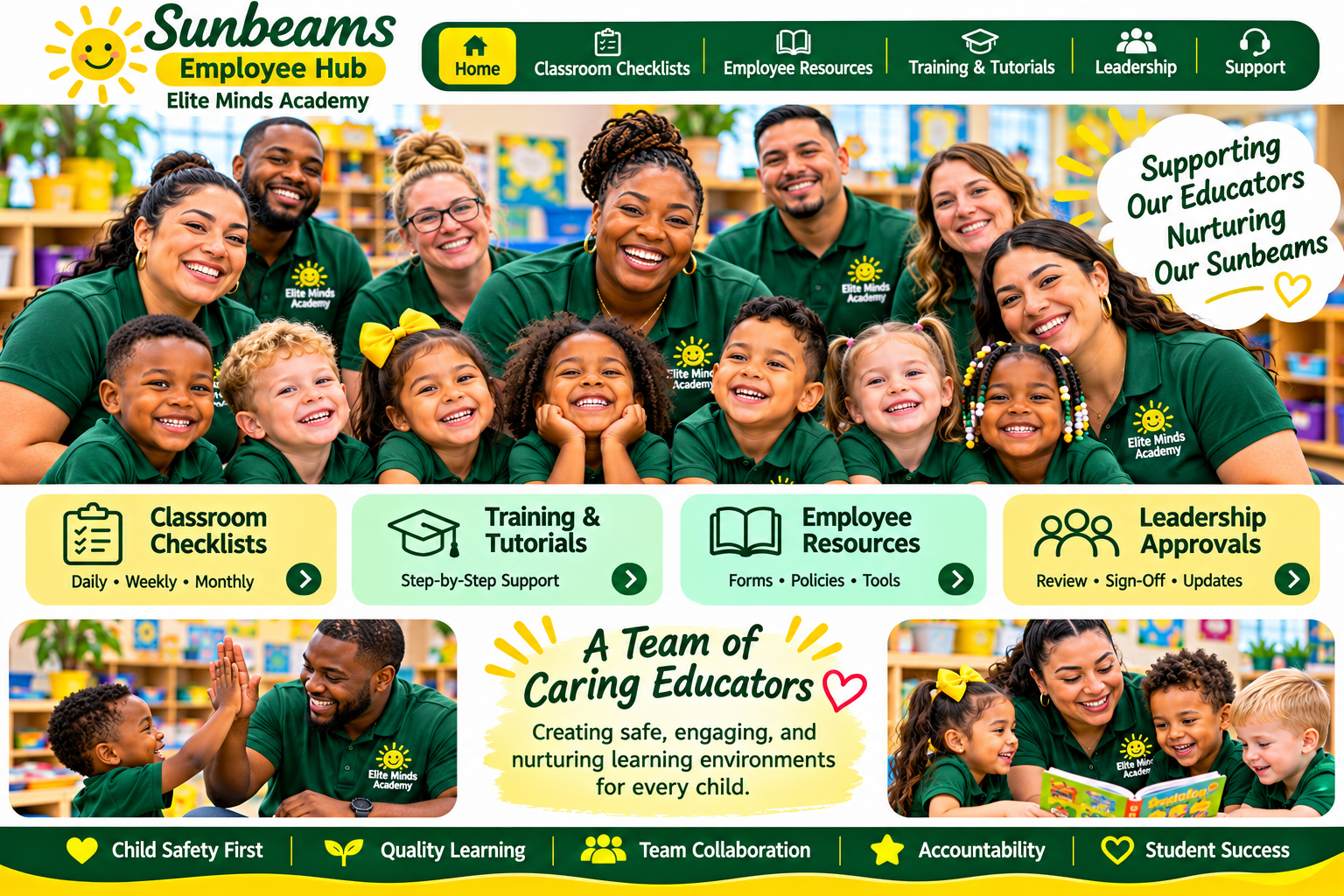
How to Use the Employee Hub
Quick-start guide for classroom teachers, leads, the Assistant Director, PIC and owners.
All employees
- Open the hub on your assigned classroom iPad; add the site to your home screen in Safari or Chrome.
- Use the Site Directory to find tools and training.
- Start with New Employee Orientation. A leader signs into Admin4You for supervised Playbook access.
- Open Classroom Checklists and select your classroom.
- Complete every item after physically checking it. Reconcile children with Brightwheel and perform name-to-face checks.
- Ask your buddy and authorized supervisor to verify and print the record.
Lead Teachers
Prepare next week's FunnyDaffer Monday–Friday plans by Wednesday noon. Follow Thursday review and supply checks; have all lesson bins ready Friday noon. Obtain physical inspection and sign-off Friday afternoon. Use the weekly checklist to track the process.
Director, Assistant Director & PIC
Review physical classroom records and unresolved safety or material issues; sign only after verifying. Continue using the Director Reports opening and closing forms. Do not assume a printed or unchecked form was submitted electronically.
Owners
The Owner Dashboard and Owner Approvals are previews, not live reporting or approval databases. Use existing approved channels for official records until secured workflows are deployed.
Privacy and troubleshooting
Do not store student names or personnel information in unsecured website fields. Never share Admin4You credentials. If a checklist cannot print, verify all required fields and boxes. If the iPad is shared, close sensitive sessions and sign out of authenticated services.